- Can you print a PDF at 7-Eleven in Japan?
- What to prepare before leaving your hotel
- Choose your printing route
- From your phone: upload, save the code, then print
- With a USB drive: use plain-paper print
- Bring coins and check the displayed total
- If printing does not work
- Plan B: when the chosen printing route does not work
- Common questions about PDF printing at 7-Eleven
- Do I need an account to print a PDF from my phone?
- How long is a kantan netprint reservation valid?
- How much does black-and-white A4 PDF printing cost?
- Can I pay for netprint with a credit card or Suica?
- Is printing from USB the same as entering a netprint code?
- Can I use a password-protected PDF?
- What should I check before paying?
- What if I cannot upload the PDF from my phone?
Can you print a PDF at 7-Eleven in Japan?
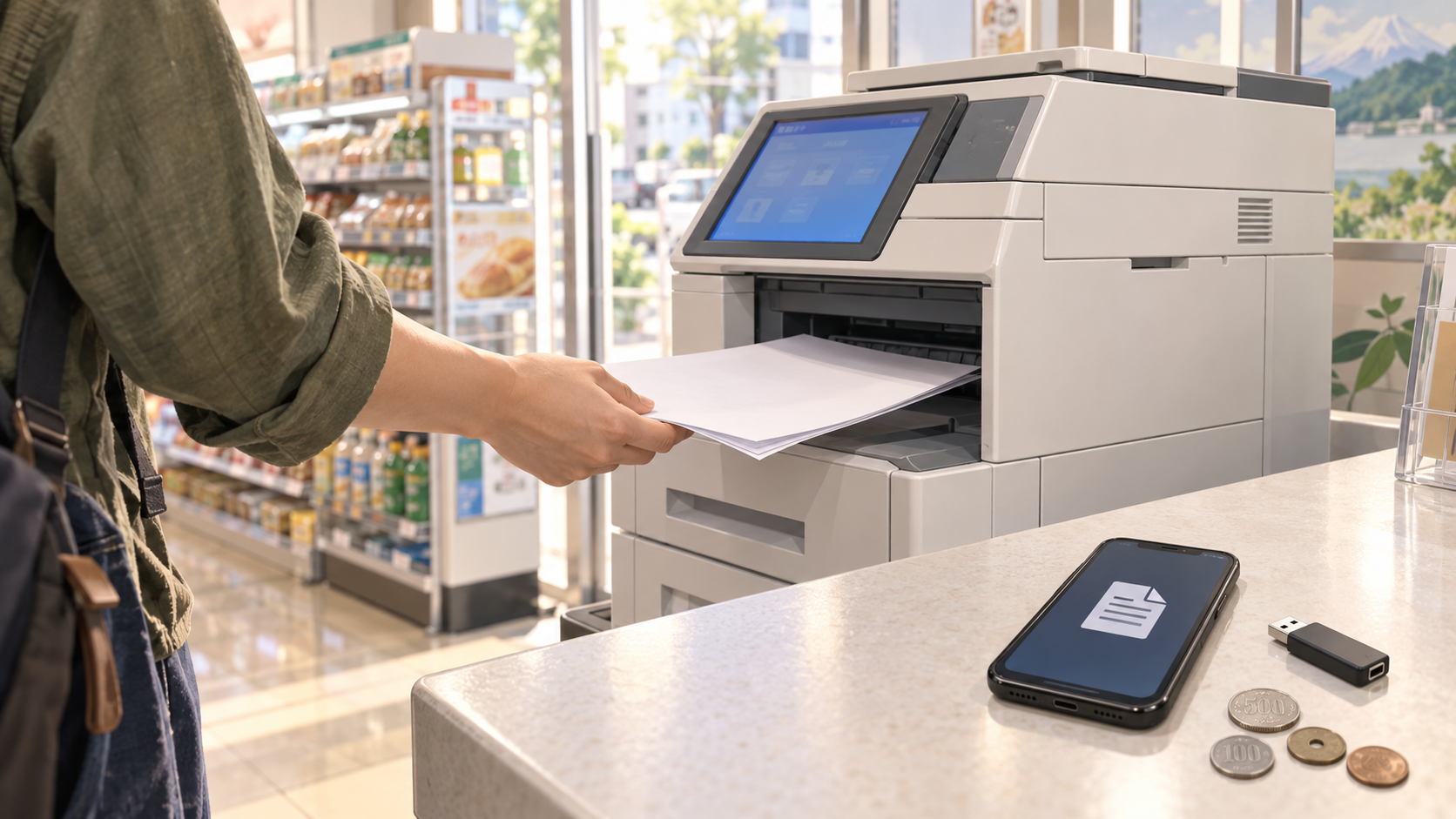
Yes. A 7-Eleven store with a multi-copy machine can print a PDF. If the file is on your phone, upload it to kantan netprint and take the resulting QR code or reservation code to the machine. If you already have a USB drive, use the machine’s plain-paper print option instead. Bring yen coins; the printer’s payment options differ from those at the shop counter.
This guide covers printing an ordinary PDF. It does not issue an airline boarding pass or replace an event ticket: check whether the document you actually need must come from the airline or ticket provider.
Last checked: 8 October 2026. This guide uses official FUJIFILM Business Innovation and Seven-Eleven Japan information. The practical decision is to choose the right printing route before leaving your accommodation: a netprint code and a USB drive are used in different menus, and USB and network-print fees are not interchangeable.
What to prepare before leaving your hotel
Start with the document you actually need. Open the PDF on your device and check that it is the final version, includes the correct pages and is readable. If a recipient specifies a paper size, color or another requirement, use that requirement rather than choosing the cheapest setting automatically. Printing a document correctly is different from making it valid for its intended use.
- For a phone upload: have internet access, the PDF file, and a way to save the resulting QR code or reservation number. Complete the upload before walking to the shop.
- For USB: save the PDF on the drive in advance and keep it easy to identify. A USB drive without the file does not replace the upload step.
- For either route: bring coins, decide which pages you need, and leave enough time to check the preview or try a backup.
For example, if you need only one page from a longer travel confirmation, decide that before reaching the machine. Check the page range in the preview so you do not accidentally pay for pages you did not intend to print. This is a preparation example, not a report of a printing test.
Choose your printing route
| What you have | Use this | What to bring |
|---|---|---|
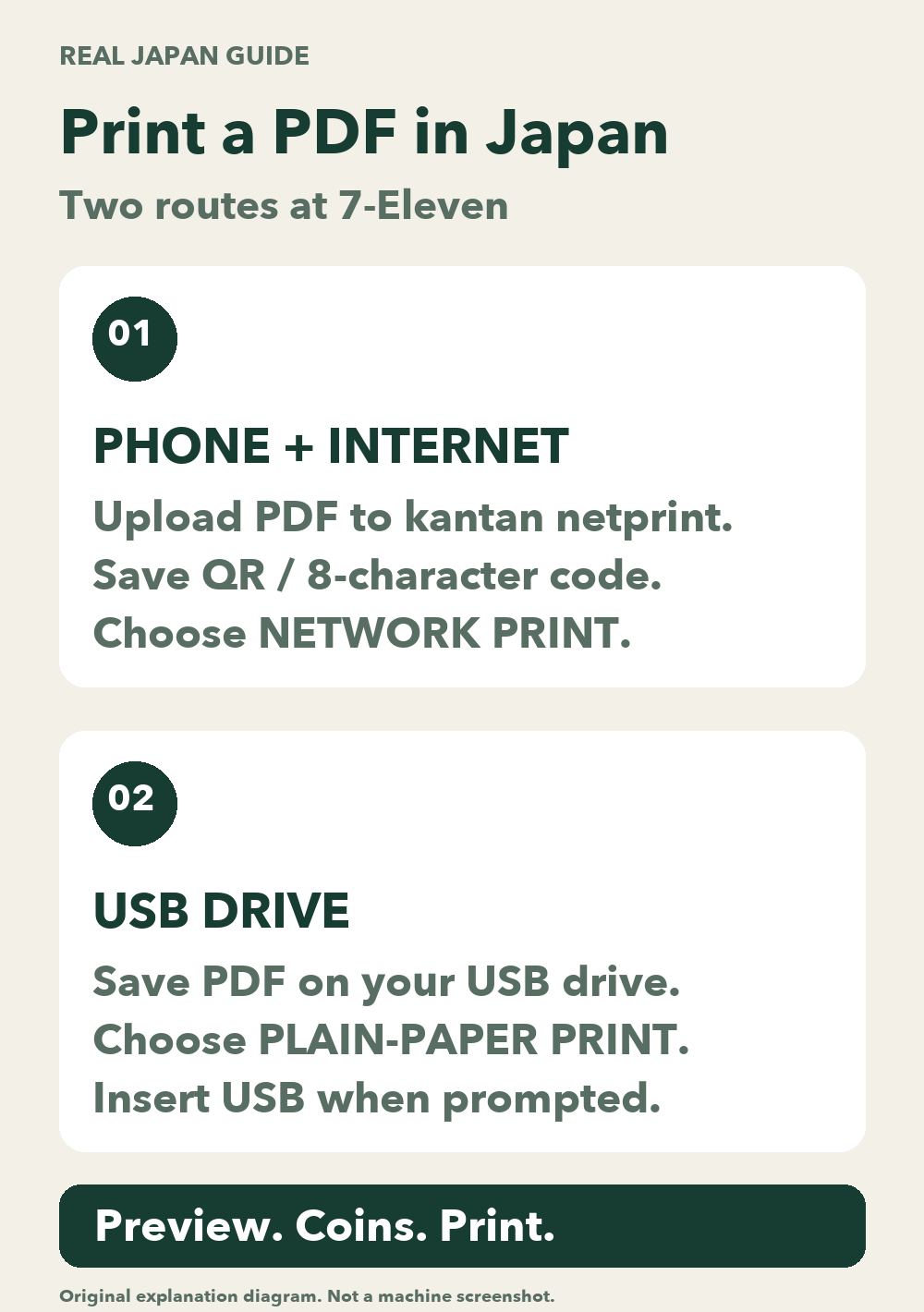
| A PDF on your phone and internet access | kantan netprint: upload first, then print in store | Your saved QR code or 8-character reservation code, plus yen coins |
| A PDF already saved on a USB drive | Plain-paper print at the machine | Your USB drive and yen coins |
The two routes use different menus. A netprint reservation code belongs under network print; a USB file belongs under plain-paper print.
From your phone: upload, save the code, then print
1. Upload the PDF before going to the store
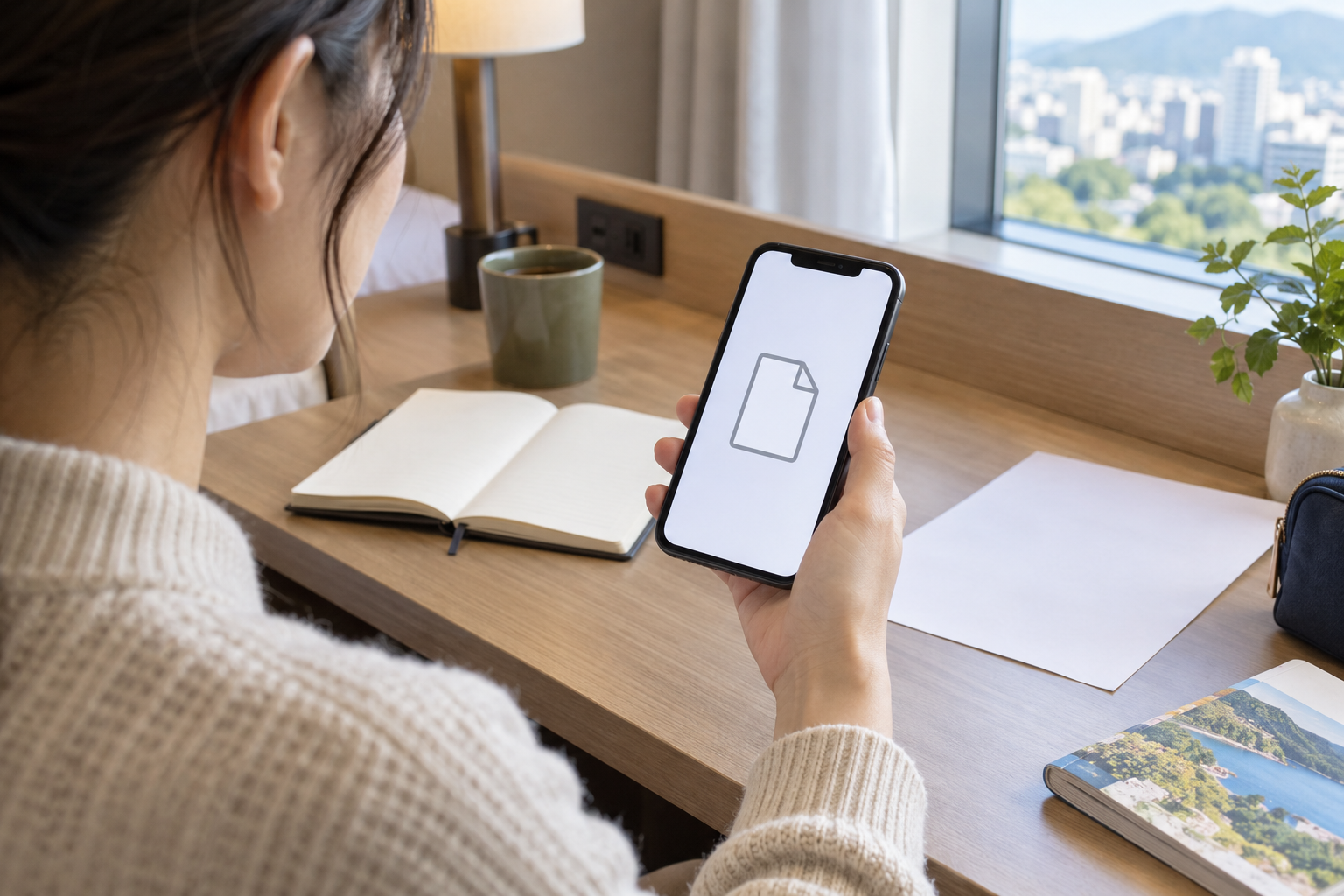
Kantan netprint does not require a user account. You can use its app or browser uploader.
Choose your PDF and print settings. For an ordinary travel document, A4 plain paper is a practical starting point, unless the recipient specifies a different size. Read the service terms before uploading.
For browser uploads, the listed file limit is 10 MB per file. A file protected against viewing or printing cannot be registered. If your upload fails, check the PDF’s protection and size first. See the official file restrictions for other limits.
Do not confuse having a document visible in an email or browser with having the PDF file ready for the upload form. Locate the file first and check that you are selecting the intended document. If you only have a link or an image, obtain the PDF that the issuer or recipient expects rather than assuming a screenshot will be suitable.
For a protected PDF, ask the sender for a version that the printing service can accept. If it is too large, obtain a smaller valid copy and check that the important content remains readable. A successful upload matters more than repeatedly trying the same file without checking the official restrictions.
2. Save the QR code or reservation code
Wait for the upload result, then save the QR code or the 8-character alphanumeric reservation code. The browser guide warns that closing the window removes the displayed reservation code, so save it before leaving the page.
The no-account service keeps files available until 23:59 on the day after registration. It is not a rolling 24-hour deadline. Use the expiry shown for your file; if it has expired, upload again to obtain a new code.
If you upload late in the evening, the “next day” deadline still applies; if you upload early in the morning, it is still the next day’s 23:59. The date displayed for the individual file is the useful check. Do not plan an important print job around a vague memory that the code lasts “about a day.”
Keep the saved code linked to the right document. If you replace the PDF or register it again, use the result of the new registration. Avoid publicly sharing a screenshot that contains your code or sensitive document information.
3. Use the multi-copy machine
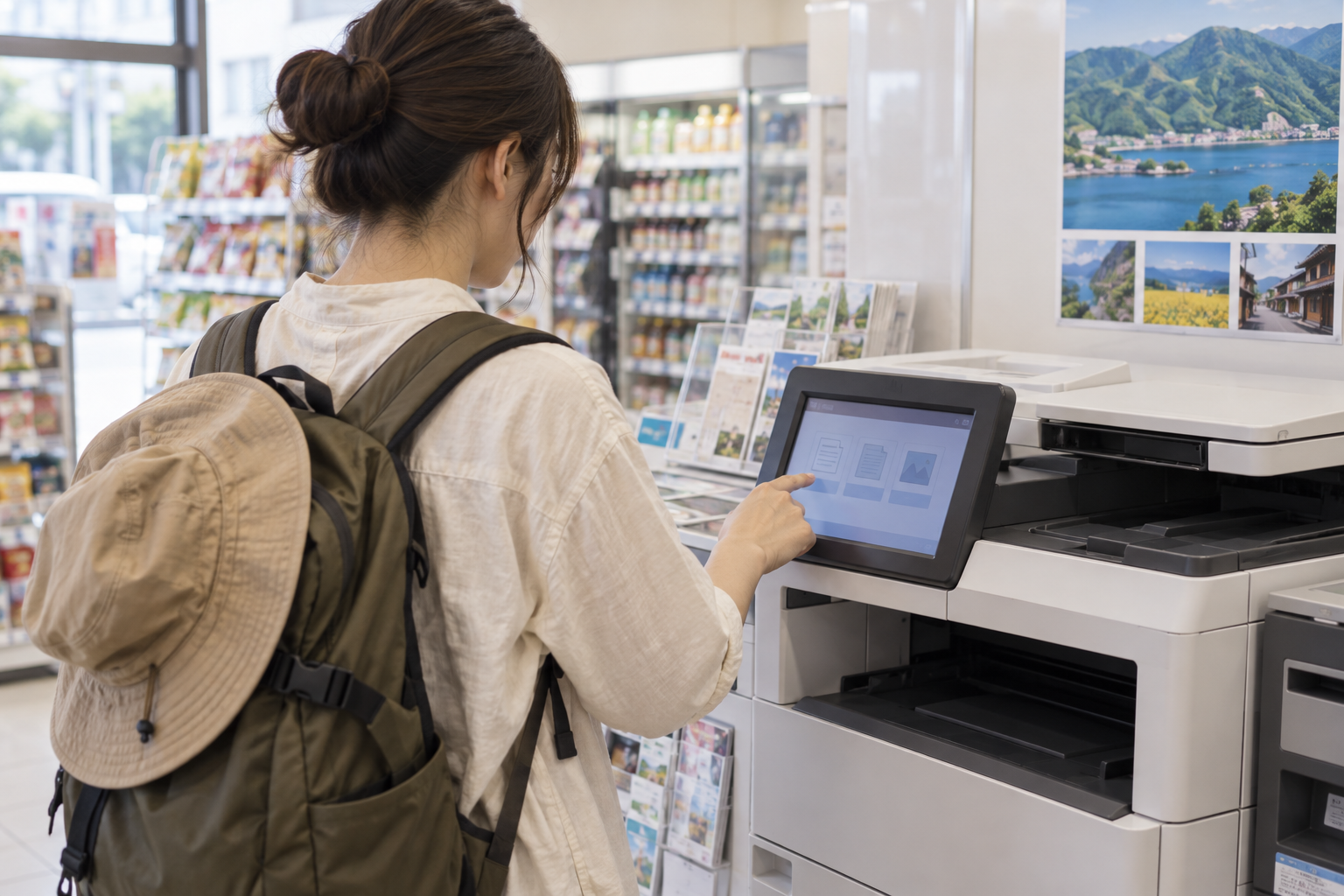
- With the machine’s main menu showing, scan your saved QR code. Alternatively, choose プリント (Print), then ネットプリント (Network print), and enter the reservation code.
- Check the document preview, page range, paper size, color setting and number of copies.
- Check the final price. Select coin payment or nanaco payment, pay, then start printing.
- Collect your pages and any change before leaving.
The official in-store guide includes pictures of both the QR-code and reservation-code routes.
The final preview is the point to slow down. Confirm that the first and last pages are the ones you need, that the content is not cut off, and that the number of copies is intentional. Black-and-white may be enough for an ordinary text document, but use the recipient’s instructions if color is required. Stop before paying if the result does not look right.
With a USB drive: use plain-paper print
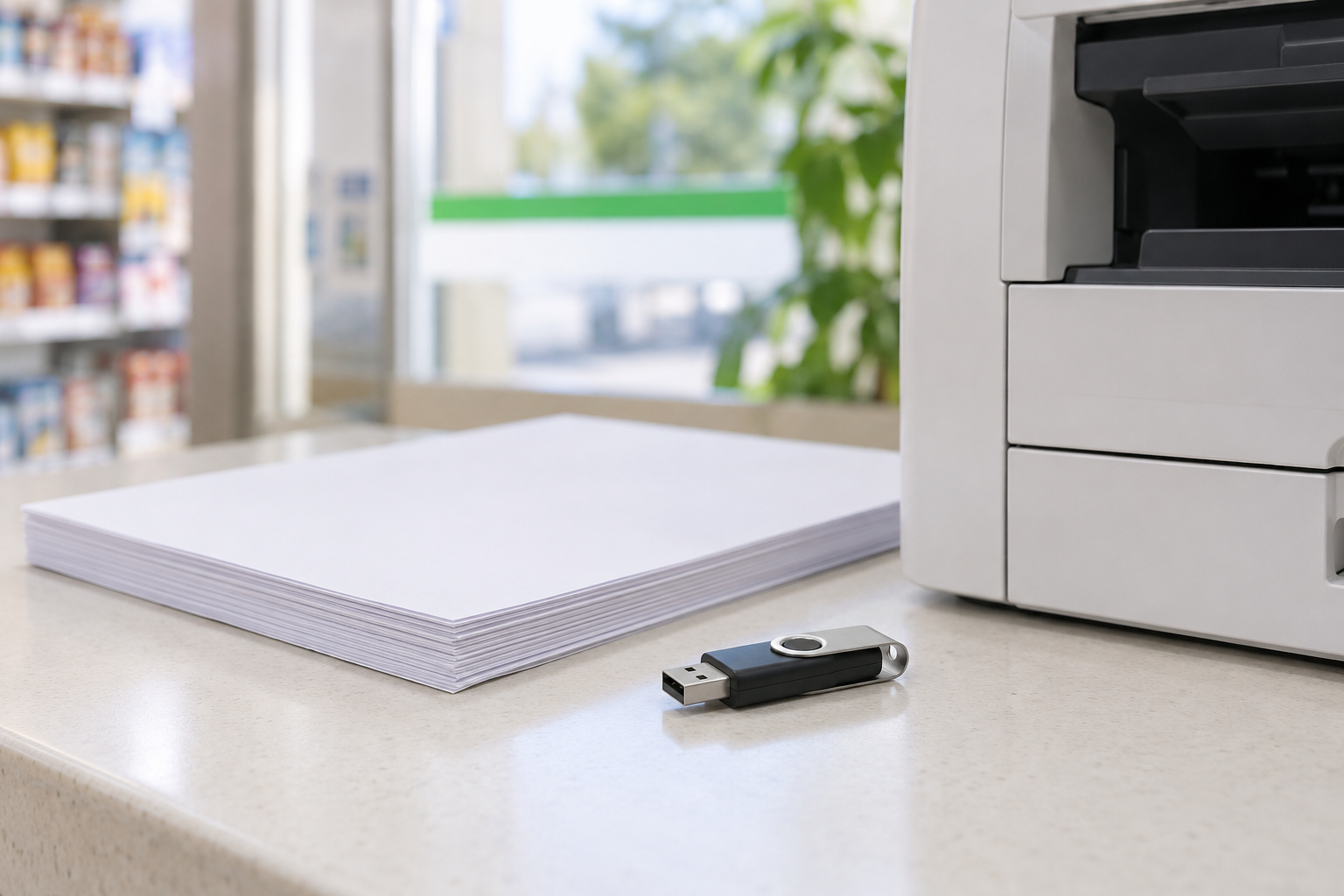
At the machine, choose プリント (Print), then 普通紙プリント (Plain-paper print). Follow the screen’s instructions to insert your USB drive and select the PDF. Check the preview and settings before paying. Leave the drive connected until the machine tells you it can be removed.
7-Eleven’s official print page lists black-and-white A4 printing from USB at ¥10 per sheet. The separate smartphone Wi-Fi route uses the “7-Eleven Multi-copy” app and has its own listed fee; it is different from uploading to netprint.
USB is useful when the PDF is already on the drive or when you can save it there before leaving your accommodation. It is less useful as an emergency plan if your file exists only on your phone and you have no way to copy it onto the drive. Choose a route you can actually prepare, rather than buying a USB drive and expecting the printer to retrieve your phone file.
At the machine, follow the prompts for connecting and removing the drive. Keep track of both the drive and the printed pages when the job finishes. If the file cannot be selected or looks wrong in preview, stop and consult the official supported-file guidance instead of changing unrelated settings.
Bring coins and check the displayed total
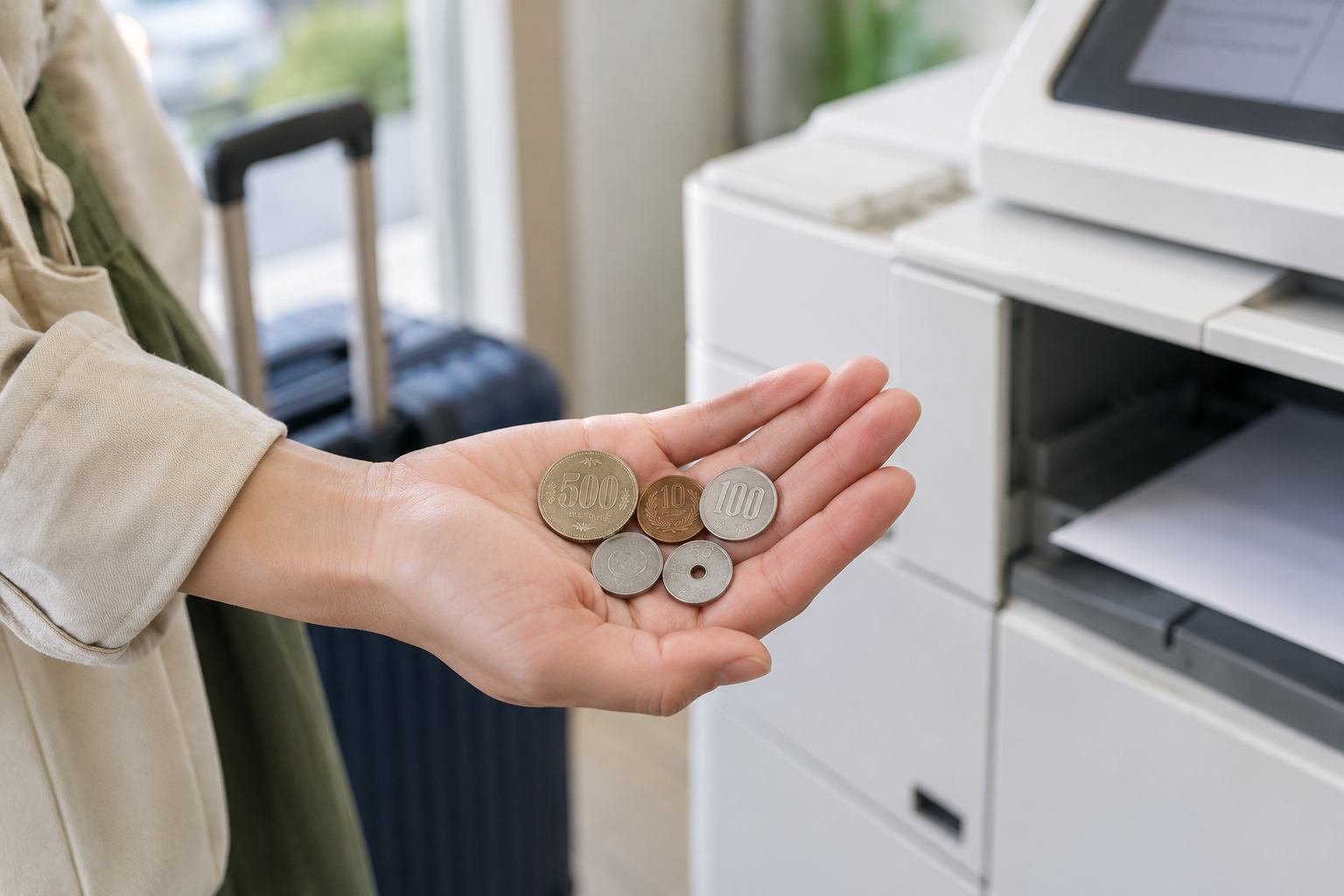
The netprint instructions specify yen coins or nanaco for payment at the machine. Do not assume that a credit card, Suica or the payment methods accepted at the shop counter will work at the printer.
Network-print prices were inconsistent across the provider’s official pages when checked: the fee table and a fee FAQ gave different black-and-white amounts. Confirm the total on the machine’s preview before paying. Double-sided network printing is charged for both sides, according to the fee table.
| Printing route | Price information checked | What to do |
|---|---|---|
| USB, black-and-white A4 | Official Seven-Eleven page lists ¥10 per sheet | Confirm your selected size, color and number of copies |
| Network print | Official fee table and FAQ disagreed on the black-and-white amount | Use the final total shown by the machine before paying |
Keep the distinction between a sheet and the total job in mind. Multiple pages or copies increase what you need to print, and double-sided network printing does not make the second side free. This guide does not calculate an unverified network-print total for you. The machine’s displayed amount for your chosen job is the check to make before starting.
If printing does not work
- The code is rejected: check that you chose network print, entered all eight characters correctly and are still within the displayed expiry.
- The upload fails: check file size and protection. For browser uploads, filenames with certain symbols or characters may also be rejected.
- The document looks wrong: stop before paying. Check the selected pages and paper size; use the preview to catch missing content.
- You cannot complete the upload: if you have a USB drive and can save the PDF to it, switch to the USB route. Otherwise, ask your hotel whether it can help print the document; availability depends on the hotel.
Plan B: when the chosen printing route does not work

Use a backup that changes the actual problem. An expired netprint code needs a new registration. A protected or oversized PDF needs an acceptable file. Switching stores without fixing either issue will not solve that particular problem.
If uploading is the obstacle and you already have a usable PDF on USB, try the USB route. If you cannot prepare either route, ask your accommodation whether staff can help print the document, what it would cost, and whether the timing works. Do not assume every hotel offers printing. For a time-sensitive document, decide on the backup before you are close to the deadline.
Before leaving any printing location, check the pages you received. Collect the USB drive if used and any change, then put the document somewhere safe. A final glance at the page order and readability is more useful than discovering a missing page after you have left.
For related practical help, see our convenience-store guide and cash and ATM guide.
Common questions about PDF printing at 7-Eleven
Do I need an account to print a PDF from my phone?
No account is needed for kantan netprint. Upload the PDF in its app or browser uploader, save the QR code or reservation code, then use the store’s network-print option.
How long is a kantan netprint reservation valid?
The no-account service’s deadline is 23:59 on the day after registration, rather than exactly 24 hours after uploading. Check the expiry displayed for your own file.
How much does black-and-white A4 PDF printing cost?
The official USB printing page lists ¥10 per sheet. For network printing, the official fee table and FAQ disagreed when checked on 8 October 2026; check the machine’s displayed total instead of assuming the USB price applies.
Can I pay for netprint with a credit card or Suica?
The official netprint instructions list yen coins or nanaco. Bring coins, and do not rely on a credit card or Suica being accepted by the printer.
Is printing from USB the same as entering a netprint code?
No. Use Print → Plain-paper print for a USB file, and Print → Network print for a netprint reservation number. Distinguish the menus before starting to avoid choosing the wrong one.
Can I use a password-protected PDF?
The official browser restrictions say files protected against viewing or printing cannot be registered. Ask the sender for an acceptable version and consult the restrictions before trying again.
What should I check before paying?
Check the correct document, page range, paper size, color, number of copies and total price. Stop if the preview is cut off or does not match what you need.
What if I cannot upload the PDF from my phone?
Check file size, protection and the official filename restrictions. If you can prepare a USB drive, use that route; otherwise, ask your accommodation whether printing help is available rather than assuming it is.
Official service information checked on 8 October 2026. This is a researched guide, not a report of a firsthand printing test.


Comments