Quick Answer: Yes. Google Maps is useful for major-city trains, station entrances and exits, walking, and place search in Japan. Keep mobile data: Google says offline maps do not provide public-transport or walking directions. Treat the app as guidance, not the final authority. Verify last trains, disruptions, rural buses, and important opening hours with the operator or venue.

Checked on: July 12, 2026. App features vary by device, account, language, location, and data availability.
Google Maps can remove a lot of friction from a Japan trip, but it cannot remove every uncertainty. It may show a useful platform number, boarding position, or station exit for one journey and less detail for another. A departure can be scheduled rather than live. A rural bus timetable or a small restaurant’s holiday may be outdated.
The safest habit is simple: use Maps to build the route, then verify the part that would seriously damage your day if it were wrong.
- The 30-Second Trust Guide
- Set Up Google Maps Before Landing
- How to Read a Train Route Without Overtrusting It
- Use the Station Exit—But Keep Reading the Signs
- Walking and Lens in Maps
- Places, Reviews, Hours, and Reservations
- Where Google Maps Most Often Needs a Plan B
- FAQ
- Official Sources Checked for This Draft
The 30-Second Trust Guide
| What you are checking | Use Google Maps for | Verify before it matters |
|---|---|---|
| Major-city train route | Comparing routes, transfers, fares, platforms, and walking segments | Disruptions, final train, and pass coverage |
| Station entrance or exit | Finding the entrance/exit shown on the route and walking to it | The physical station signs and operator map |
| Walking | Direction and general route | Underground GPS, construction, stairs, and the exact building entrance |
| Rural or infrequent bus | Discovering a possible route | The operator’s current timetable and service notices |
| Restaurant or attraction | Location, reviews, photos, and listed hours | Official site, reservation confirmation, or a direct call for a must-do visit |
| Offline use | Keeping an area map as an orientation backup | Transit and walking need an internet connection |
Set Up Google Maps Before Landing
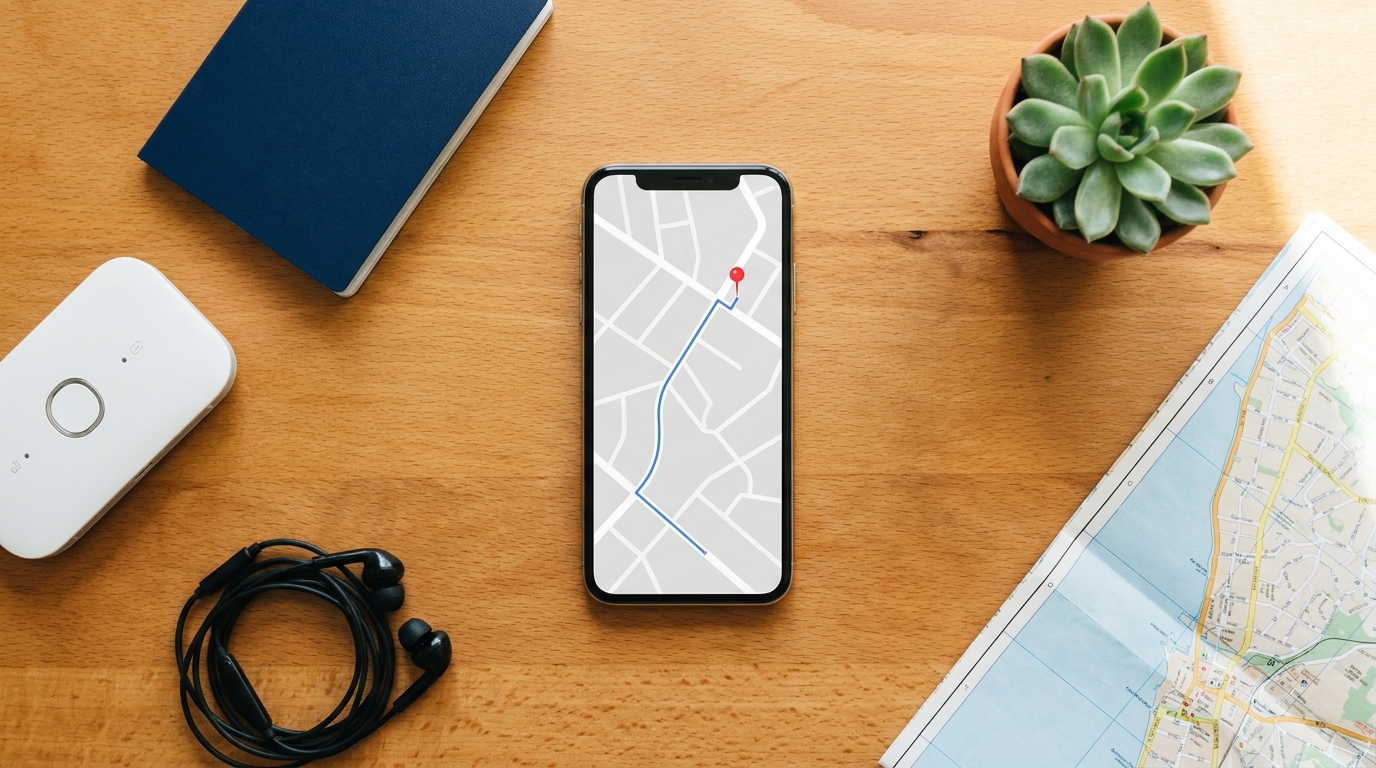
Do these four things while you still have reliable internet:
- Save your accommodation. Save the exact place listing, not only a dropped pin. Also keep the Japanese address, building name, entrance photo, and phone number from your booking.
- Save the places that would be difficult to replace. Add stations, restaurants, meeting points, and the airport terminal to a trip list.
- Download an offline area. In Maps, open your profile, choose Offline maps, then Select your own map. Cover your accommodation and the places around it.
- Arrange reliable internet access. If you expect transit and walking routes to update while you move, use an eSIM, SIM, pocket Wi-Fi, or another dependable connection.
An offline map is still worth downloading, but understand the limit. Google Maps Help says public-transport, cycling, and walking directions are unavailable offline. Offline driving also loses traffic information and alternative routes. Use the download for orientation if your signal disappears—not as your main train navigator.
If you still need a connection plan, compare the options in RJG’s Pocket Wi-Fi vs eSIM vs SIM guide.
How to Read a Train Route Without Overtrusting It
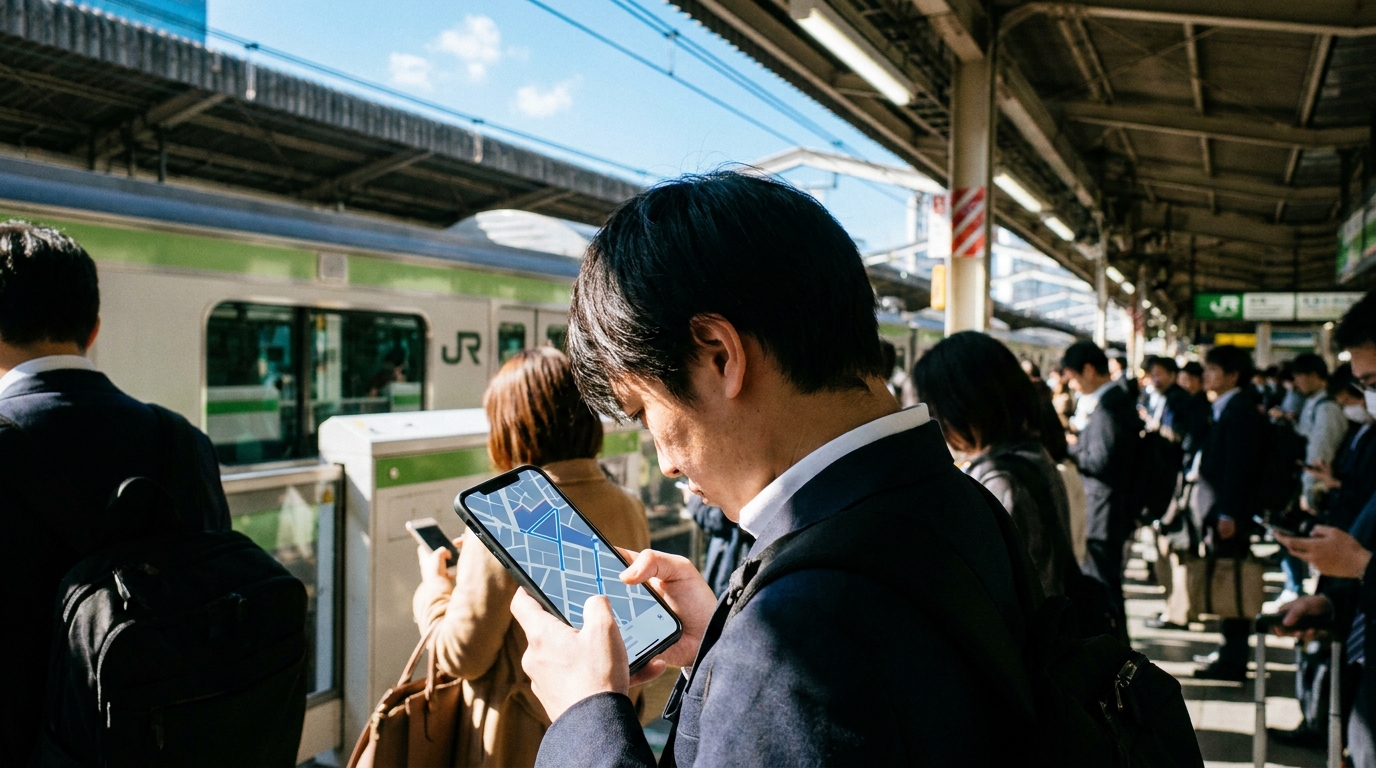
Search your destination, tap Directions, and select public transport. A useful route may show:
- the rail or subway operator and line name;
- departure and arrival stations;
- platform number;
- transfers and walking segments;
- estimated fare;
- a station entrance or exit;
- an advised boarding position where data is available.
Open the full route details before you enter the station. Do not rely only on the top-line journey time.
Scheduled is not the same as live
Google’s departure help says some stations show real-time departures while others show a schedule. If the departure is not explicitly marked as updating in real time, treat it as scheduled information.
For an ordinary daytime trip, this distinction may not change your plan. For the last train, an airport connection, a reserved train, or travel during a typhoon or snow event, check the railway or bus operator’s official service information before leaving.
Do not assume there is a JR-only filter
Google’s departure help documents selecting a preferred transport mode and route, but the official help reviewed for this draft does not document a JR-only carrier switch. The app interface can change, so check the options shown on your device—but do not plan as if Maps will automatically exclude private railways. If you use the Japan Rail Pass or a regional pass:
- expand every leg of the route;
- read the operator name beside each train;
- compare it with the pass issuer’s official coverage;
- choose a different route if the uncovered fare is not worth the time saved.
Use the Station Exit—But Keep Reading the Signs

The correct exit can save more time than the fastest train. Tokyo subway exits often use letter-and-number labels such as A7 or B12. JR stations commonly use named exits such as East, West, Central, or South Exit.
Google announced that Maps can show station entrances and exits, the side of the street, and walking routes to and from them in more than 80 cities, including Tokyo. See Google’s official transit update.
Availability still varies. If your route shows an exit:
- screenshot the route before going underground;
- follow the same exit label on station signs;
- do not surface through another exit just because it appears closer on the blue dot;
- after the ticket gate, check the building name or entrance photo—not only the pin.
If Maps and a physical sign disagree, trust the station sign and ask staff. Showing the destination screen is usually faster than trying to pronounce a long address.
Walking and Lens in Maps

The blue dot can lose direction near tall buildings and can be unreliable underground. When available, Lens in Maps can use your camera and surrounding buildings or signs to help establish direction.
Google’s Lens in Maps help says availability depends on a supported country, an ARKit/ARCore-compatible device, and good Street View coverage. It works best outdoors, in good light, when the camera can see buildings and signs. Put the phone down once you know the direction; Google also recommends using the camera view only when necessary.
Google introduced Indoor Live View at selected major JR East stations and commercial facilities in Japan, including examples such as Tokyo, Shinjuku, and Shibuya. The official Google Japan announcement is evidence that the feature exists in Japan, not a guarantee that it will appear for every device, account, station, or route today.
If the Lens or Live View button does not appear, use the 2D map, compass, station signs, and the destination’s exterior photo. Do not keep walking while staring through the camera.
Places, Reviews, Hours, and Reservations
Google Maps is useful for checking a place’s location, photos, listed hours, recent reviews, and website. Review translation may help you understand Japanese feedback, but a translation can miss nuance. Read several recent reviews and look for repeated facts such as queue rules, cash-only payment, entrance location, or an irregular closure.
Treat listed hours as a lead, not a guarantee. For a place that is difficult to replace, compare the Maps listing with the venue’s official website or social account on the day of the visit.
If a Reserve a table button appears, you can follow that booking flow. Availability, partners, and terms differ by venue. Do not assume a reservation exists until you receive a confirmation.
Where Google Maps Most Often Needs a Plan B

Underground or inside a large station
GPS may not establish a reliable position indoors or underground. Follow platform, gate, and exit signs. Search the station name to view its place card or indoor map where available.
Rural or infrequent buses
A route may be missing, seasonal, or based on scheduled data. Check the operator’s timetable and service notices. If the bus is the only way to reach a remote lodging or trailhead, confirm it before leaving the previous major station.
Last trains and disruptions
Maps can suggest a route that becomes useless if one leg stops running. Confirm official operation information, especially late at night and during severe weather.
The pin is not the entrance
Large complexes can have multiple buildings, floors, and entrances. Compare the Japanese address, building name, storefront photo, and any instructions from the venue or host. The blue pin is not proof that you are standing at the correct door.
When Maps is wrong: the RJG Plan B
- Stop before you move farther away. Return to the last sign, gate, staffed counter, or well-lit public place you can identify.
- Check the exact target. Compare the Japanese address, building name, entrance photo, floor, and phone number.
- Check the physical transport information. Read the station sign or platform display, then open the operator’s official website or app for disruption and timetable information.
- Ask a person. Show station staff, a hotel desk, or venue staff the destination screen. Ask about the exit or platform, not just the general area.
- Protect the critical connection. If the last train, airport check-in, reserved seat, or rural bus is at risk, choose the confirmed backup rather than continuing to follow an uncertain route.
FAQ
Does Google Maps work well in Japan?
Yes. It is useful for major-city trains, station entrances and exits, walking, and place search. Verify last trains, disruptions, rural buses, important opening hours, and the exact building entrance with the operator or venue.
Does Google Maps work offline in Japan?
Only in a limited way. A downloaded map can help with orientation and some driving guidance, but Google says public-transport, cycling, and walking directions are unavailable offline. Keep mobile data for train and walking routes.
Are Google Maps train times live in Japan?
Not always. Google says some stations show real-time departures while others show scheduled departures. Treat a time as scheduled unless the app explicitly marks it as updating in real time, and verify critical journeys with the operator.
Can Google Maps show the correct station exit in Tokyo?
It can show station entrances and exits for many routes, but not every station or journey displays the same detail. Match the exit label in Maps with the physical station signs; if they disagree, follow the sign and ask station staff.
What should I do if Google Maps sends me to the wrong building?
Stop and compare the Japanese address, building name, entrance photo, floor, and phone number. Look for the actual sign or ask staff nearby. Do not assume the blue pin marks the correct door in a large complex.
Can I reserve a restaurant through Google Maps in Japan?
Sometimes. If a Reserve a table button appears, follow the flow and check the provider’s terms. The reservation is not complete until you receive confirmation; otherwise use the venue’s official site or a booking platform.
Official Sources Checked for This Draft
- Download areas and navigate offline in Google Maps
- Get train and bus departures
- Google Maps transit updates: station entrances and exits
- Use Lens in Google Maps
- Google Japan: Indoor Live View at major JR East stations


Comments